

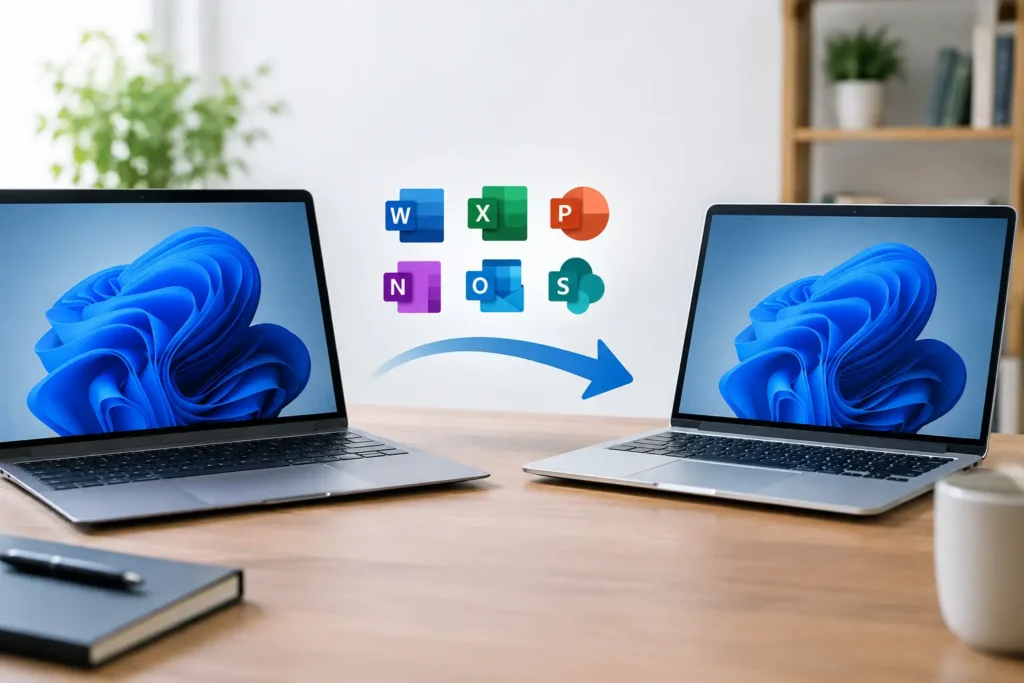
A new computer should not automatically mean paying for Office again. If you are asking, “can I transfer Office license to new computer,” the honest answer is: often yes, but it depends on the license type you purchased and whether the old device is still using it.
The key distinction is simple. A retail or one-time-purchase Office license can usually move to another PC, provided you remove it from the old one and use it on only one computer at a time. An OEM license that came preinstalled with a computer is normally tied to that original device. Microsoft 365 works differently because it is a subscription connected to your Microsoft account rather than a permanent single-device key.
Before you install anything, take a minute to identify what you own. That one step can prevent an activation error, a duplicate installation, or an unnecessary new purchase.
Can I transfer Office license to a new computer?
For most retail Office editions, yes. This commonly includes one-time-purchase versions such as Office Home & Student, Office Home & Business, or Office Professional when they were purchased separately from the computer. The license is generally assigned to one PC at a time, not permanently locked to the first machine where you installed it.
Your old computer does not need to be broken or wiped before you move the license. However, you should uninstall Office from that device if you still have access to it. This keeps your setup compliant and makes it less likely that activation will be rejected on the new PC.
The main exceptions are OEM and organization-managed licenses. OEM Office is typically included by the manufacturer as part of a computer bundle. Because it is sold with that hardware, it usually cannot be transferred to a replacement computer. If Office was supplied by an employer, school, or IT department, the organization may control where it can be installed and whether it can move.
First, find out which Office license you have
Look for your original order confirmation, product key email, retail box, or Microsoft account purchase history. You are trying to determine whether your Office purchase is a perpetual license, a Microsoft 365 subscription, OEM software, or a work or school license.
A perpetual license is the familiar pay-once option. It is designed for a specific Office version, such as Office 2021 or Office 2024, and does not require recurring subscription payments for continued use. It may be transferable when it was sold as a retail license, but it is still normally limited to one active PC.
Microsoft 365 is subscription-based. Depending on your plan, you may be able to install Office on more than one device and sign in across computers, tablets, and phones. You usually do not need to enter the same product key again. Sign in with the Microsoft account that owns the subscription, install the apps, and manage older devices through your account if you have reached your device limit.
If Office was already on your PC when you bought it, do not assume it is transferable. It might be a trial, an OEM edition, or a subscription included for a limited period. Check the activation status inside an Office app by opening Account under the File menu. The product name and account information can offer useful clues.
How to move a retail Office license
The transfer process is straightforward for most people. Start on the old computer if it still turns on and you can access it.
First, save your documents and make sure important files are backed up. Uninstalling Office does not usually delete Word documents, Excel spreadsheets, or Outlook data, but a backup is still the smart move when replacing a computer. If you use Outlook, confirm that your email account and any local archive files are available before retiring the old device.
Next, uninstall Office from the old computer. On Windows, open Settings, choose Apps, find the installed Microsoft Office or Microsoft 365 product, and select Uninstall. Restarting afterward is a good idea, especially if you are moving to a different Office version.
Then, install Office on the new computer. If your purchase is associated with a Microsoft account, sign in to that same account and locate the Office product listed there. If you have an unused product key, use the official Office setup process to redeem it to your Microsoft account before installation. Keep the key and your purchase details in a secure place even after activation.
Once Office is installed, open Word or Excel and sign in with the Microsoft account tied to the license. In many cases, activation happens automatically. If you are prompted for a key, enter it carefully and make sure you are installing the same edition that the key supports. An Office Home & Student key, for example, will not activate Office Professional.
What if Office says the product key is already used?
A “key already used” message is not always bad news. A redeemed retail key is often permanently attached to the Microsoft account used during setup. That means you should sign in to that account rather than try to redeem the key a second time.
If the license was previously installed on your old PC, Microsoft may also need to recognize that you are replacing a device. Uninstalling Office from the old computer can help, but activation systems do not always update instantly. Give the service a little time, restart the new computer, and sign out and back in to your Microsoft account if needed.
A major hardware change can create similar confusion. Replacing a hard drive, upgrading several internal components, or changing a motherboard may make Office treat the system like a new computer. Retail licenses are generally more flexible in this situation than OEM licenses, but the activation process may still require additional verification.
Do not keep entering random keys or install multiple Office editions in an attempt to force activation. That can create conflicting licensing files and make the issue harder to diagnose. Verify the exact product name first, remove unused Office installations, and then activate the edition you actually purchased.
One license does not mean two active PCs
This is the part that matters most with perpetual Office products. Moving a transferable license does not mean you can leave it active on the old desktop and also use it on the new laptop. The transfer replaces the prior installation.
If your household needs Office on two or more computers, buying a second one-time-purchase license may be the simplest option. A Microsoft 365 plan may make more sense if you need multiple installations, cloud storage, and the newest app features. The better value depends on how many people and devices need access, not just the upfront price.
For a single home-office PC, student computer, or freelance workstation, a one-time-purchase Office edition can be an excellent fit. You pay once, receive the version you selected, and avoid a recurring Office bill. Just keep your order information, account credentials, and activation instructions somewhere you can find them when it is time to replace hardware.
A clean transfer starts with the right purchase
When buying Office, confirm whether the product is a lifetime, one-time-purchase license or a recurring Microsoft 365 subscription. Also confirm the supported Windows version, the included apps, and whether the license is intended for home, student, or commercial use. Those details matter more than a low price alone.
Tech Shop Pro provides digital software keys and delivery details by email, which makes it easier to keep an activation record available when you set up a new computer. For any activation issue, having the order number, product name, and the Microsoft account used for setup ready will speed up support.
A new PC is a good chance to start with a clean Office installation, organized files, and the correct license in place. Check what you own before you move it, remove Office from the old device, and you can get back to work without buying software you may already have.